Create a Query That Uses Two or More Tables

Leave a Comment
Create a Query That Uses Two or More Tables

If you want to view data from two or more tables or queries, you can create a query that pulls the data from multiple tables or queries. The tables and queries from which you pull your data
  Should have a relationship.
To create a query that uses two or more tables:
1.   Open the tables and/or queries you want to use in Query Design view.
2.   Choose the field names you want to retrieve in the order you want to retrieve them.
3.   Choose the field names you want to sort by in the order you want to sort. Under the fields you want to sort by, choose Ascending or Descending.
4.   Enter your selection criteria, if necessary (Not applicable in this example).
5.   Deselect the Show button for columns you do not want to display (Not applicable in this example).

6.   Click the Run button. Access retrieves the columns you chose and displays the rows in the order you specified.
Read More

Sort Multiple Columns in a Query

Leave a Comment
Sort Multiple Columns in a Query

As you learned in the previous section, you can sort the rows your query returns. You can also create sorts within a sort. For example, you can sort by state and then within a state, you can sort by last name and then by first name. You specify the sort in the order you want the sort to occur. If you want to sort by state and then by last name within a state and then by first name within last name, you enter the sort in the following order: city, last name, first name. Your sort order may not agree with the order in which you want to display fields. In such a case, you can use fields that do not display to enter your sort order. To prevent a field from displaying, deselect the Show box on the Show row.
To sort multiple columns:


1.   Open a table or query in Query Design view.
2.   Choose the field names you want to retrieve in the order you want to retrieve them.
3.   Choose the field names you want to sort by in the order you want to sort.
4.   Under the fields you want to sort by, choose Ascending or Descending.
5.   Deselect the Show button for the columns you do not want to display.
          6.   Click the Run button. Access retrieves the columns you chose and displays the rows in the order                       you specified.
Read More

Sort a Query

Leave a Comment

Sort a Query
When creating a query, you can sort the rows you retrieve in ascending or descending order by choosing the option you want on the Sort row in Query Design view.
To perform a sort:
  • 1.   Open a table or query in Query Design view.
  • 2.   Choose the field names you want to retrieve in the order you want to retrieve them.
  • 3.   Under the field you want to sort, click the down-arrow and then choose Ascending                                    or Descending.
  • 4.   Click the Run button. Access retrieves the columns you chose and displays the rows in the order you specified.


Read More

Retrieve Multiple Columns

Leave a Comment
Retrieve Multiple Columns

You can use an Access query to retrieve multiple columns of data. On the Field line in Query Design view, choose the field name of each field you want to retrieve in the order you want to retrieve them.


To retrieve multiple columns:
 1.   Open a table or query in Query Design view.
2.   Choose the field names you want to retrieve in the order you want to retrieve them.
3.   Click the Run button. Access retrieves the columns you chose.

Read More

Retrieve a Single Column

Leave a Comment
Retrieve a Single Column

You can use an Access query to retrieve a single column of data. Instead of choosing the tablename.* option on the Field line in Query Design view, choose the name of the field you want to retrieve.
To retrieve a single column:
1.   Open a table or query in Query Design view.
2.   Choose the field name you want to display in the field line.

3.   Click the Run button. Access retrieves the column you chose.
Read More

Change from Datasheet View to Query Design View

Leave a Comment
Change from Datasheet View to Query Design View
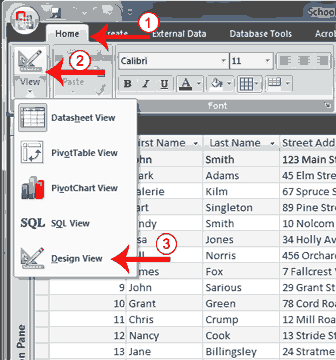
After you run a query, you can easily change back to Query Design view and make modifications to your query or create a new query.

To change to Query Design view:


1.   Activate the Home tab.
2.   Click the down-arrow below View in the Views group. A menu appears.

3.   Click Design View. Access changes to Query Design view. You can modify your query.
Read More